BoreSys
User guide
Start with your company and first project. Follow the steps below to understand the workflow, team roles and common issues without booking a presentation.
1. Account and company
- Create an account or use your existing sign-in method. For email-link sign-in, open the link sent to your mailbox.
- Complete company setup. Check the active company in the top bar before managing its projects and members.
- Choose your interface language. Changing language does not change a project's country, authority or applicable requirements.
Invited employees should accept their team invitation rather than create a separate contractor company.
2. Employees and invitations
- Open Team. An owner or administrator can invite a member by email and select a role.
- The recipient must sign in using the invited email address and accept the invitation. Check membership status in the team list.
- Assign the least access needed for the job. Separate field work responsibilities from administrator permissions.
- Disable membership when someone leaves. Revoke pending invitations that are no longer needed.
A company invitation is different from an invitation to one project. Assigning a customer or partner to a project does not make them an employee.
3. Your first project
- Open Projects and select New project. Use a descriptive name that the team will recognise.
- Open the project and complete its site details, address, location, country and borehole type. Check the information before saving.
- Assign the customer, project manager and other required project participants.
- Before applying a template, check the project country and borehole type. Adapt the checklist to the actual site.
A participant's professional function is different from a company role. A geologist may be an external project participant.
4. Documents and files
- Open Files within the project. Choose a document purpose and upload to the correct project.
- Use clear filenames with the site, document type and date. Check that you uploaded the intended version.
- Search files by name or document type and sort by date or filename.
- Check document status and project history. Review missing items before handover.
The per-file limit is 10 MiB. BoreSys does not submit documents to authorities or certify legal compliance.
5. Tasks, deadlines and field work
- Create a task linked to its project. Describe the action, assign an owner and set a deadline.
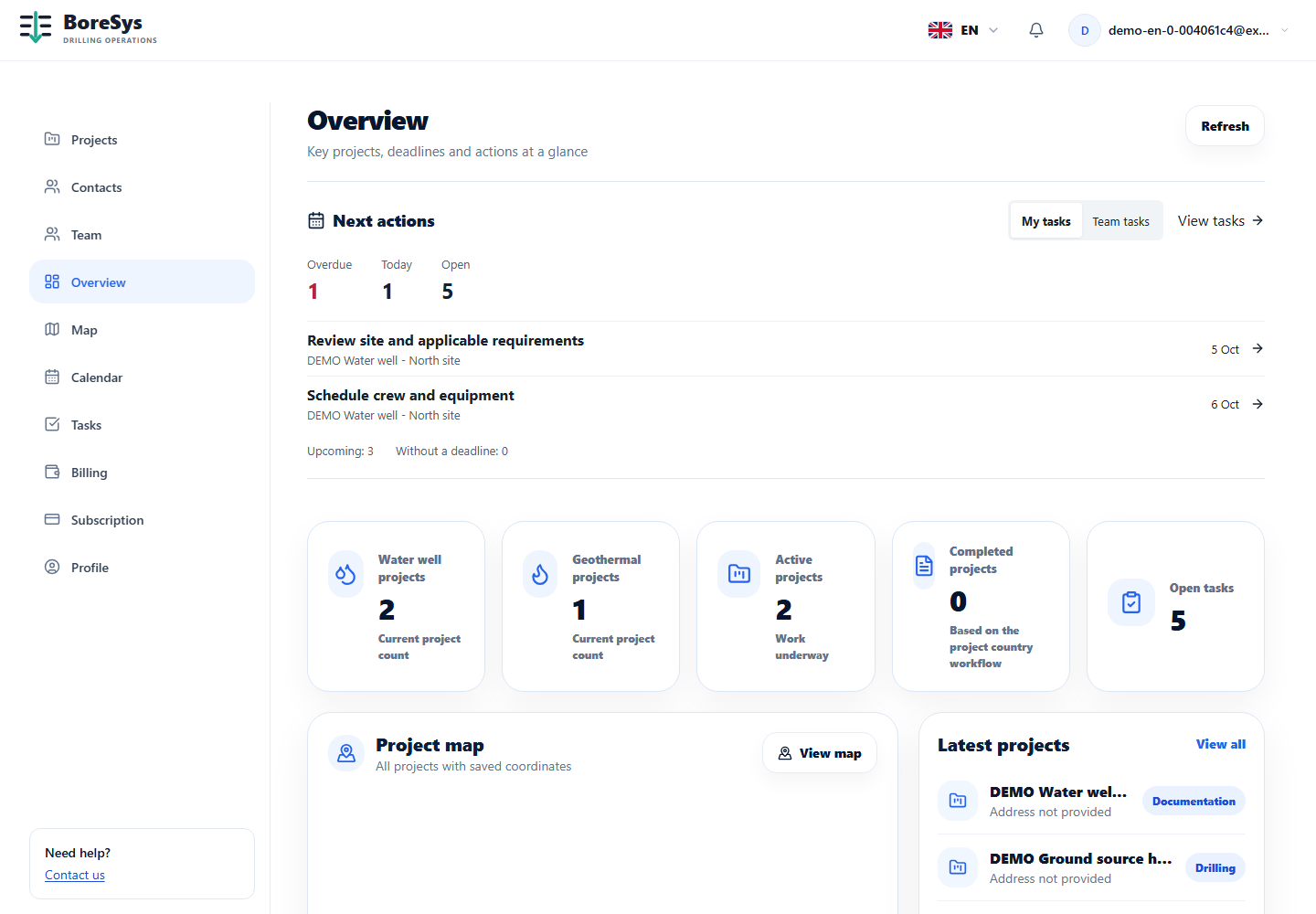
- Use Overview for next actions and Calendar for scheduled deadlines. Update task status after completing work.
- Open the site and project from Map. If a site is missing, check its coordinates and your access.
- Where a project uses work logs or multiple boreholes, associate entries with the correct borehole and keep records current.
A place name alone does not guarantee accurate map placement. Verify site coordinates.
6. Billing and subscription
- Manage commercial records in Billing and the software plan in Subscription. These are separate functions.
- Owners, administrators and accountants can view company billing. Ask your company administrator if access is missing.
- Starter is €19/month with 5 new projects per month and 3 team members. Unlimited is €29/month with unlimited projects and team.
Check current terms on the subscription and payment pages before purchasing. Project participant access is managed separately from company membership.
7. Troubleshooting
- Cannot see a project? Check the active company, membership status and project assignment.
- Cannot invite a member or create a project? Check your role and plan limits.
- Invitation missing? Verify the email address, spam folder and invitation status. Ask an administrator to renew expired invitations.
- Upload failed? Check file size, network connection and the error message. Check whether the file appeared before trying again.
When contacting support, include the page, action and error text. Never send passwords, sign-in links or customer documents.
Company roles and permissions
| Role | Create projects | Manage team | View billing |
|---|---|---|---|
| Owner | Yes | Yes | Yes |
| Administrator | Yes | Yes | Yes |
| Project manager | Yes | No | No |
| Field worker | No | No | No |
| Accountant | No | No | Yes |
| Viewer | No | No | No |
These are company-level permissions, not a guarantee of access to every project. Project visibility and actions also depend on assignments and project permissions. Only the owner can transfer company ownership. Platform administrator is not a normal team role.
Product screens
Know what needs attention next
Upcoming work and project progress in one view. Your office and field team work from the same project record.